Did you know that using a VPN can slow your internet connection by over 50%? This speed loss is a common trade-off for the privacy and security a VPN provides. While encryption and routing are essential for protecting your data, they can also impact performance.
Several factors influence this change in speed. The physical distance between your device and the server plays a significant role. Additionally, server congestion and the encryption protocol used can further affect your connection. For activities like gaming or streaming, these variations can be particularly noticeable.
Understanding these factors helps you make informed choices. By selecting the right server and optimizing settings, you can minimize speed loss while maintaining security. Let’s explore how to balance privacy and performance effectively.
Introduction to VPN Speed Variability
Not all VPNs are created equal—speed performance often depends on the service tier. Premium providers like Surfshark and NordVPN typically cause a 10-20% speed loss, while free services often come with severe limitations. Understanding these differences is key to optimizing your experience.
In regions like North America and Europe, baseline speed expectations range from 20-35Mbps. However, actual performance can vary based on the connection quality and the servers you use. Testing your internet speed with tools like Ookla Speedtest helps establish a benchmark.

It’s also important to distinguish between ISP throttling and VPN-induced slowdowns. Some providers intentionally limit bandwidth, while others maintain consistent performance. By identifying the root cause, you can take targeted steps to improve your connection.
Here’s a quick framework for troubleshooting:
- Test your baseline speed without a VPN.
- Compare results across different servers.
- Switch between premium and free services to gauge performance differences.
This approach ensures you make informed decisions for a smoother online experience.
How VPNs Work and Why Speed Changes
The way a VPN operates directly impacts your internet experience, especially in terms of speed. To understand these changes, we need to dive into the core mechanisms—encryption, data routing, and server infrastructure.

Encryption and Data Routing
Encryption is the backbone of any VPN. It secures your data by converting it into unreadable code. However, this process adds latency. For example, OpenVPN uses TCP or UDP protocols, with TCP being slower due to error-checking. In contrast, WireGuard and NordLynx are newer protocols that offer up to 3x faster speeds.
Data routing also plays a role. Your traffic is rerouted through a server, which adds distance and processing time. The more hops your data takes, the slower your connection becomes.
Server Load and Congestion
Server infrastructure matters. Premium providers like NordVPN use 10Gbps servers, which handle more traffic efficiently. Free services often rely on outdated hardware, leading to congestion during peak hours.
Here’s what to consider:
- High load during peak times slows down performance.
- Modern servers reduce congestion and improve speed.
- Choosing a less crowded server can enhance your experience.
By understanding these factors, you can make smarter choices to balance security and performance.
Why Does My VPN Speed Change When I Switch Server Locations?
The performance of your connection can vary significantly based on the server you choose. Two key factors—physical location and server load—play a major role in determining your experience. Let’s break down how these elements affect your connection.

Impact of Physical Distance
The distance between your device and the server directly impacts latency. For example, connecting from Boston to New York City results in minimal delay, while a connection to Sydney introduces noticeable lag. This is because data travels farther, increasing response time.
Here’s a quick comparison:
- Boston→NYC: ~10ms latency
- Boston→Sydney: ~200ms latency
Providers like NordVPN optimize their network by offering servers in 111 countries. This wide distribution helps reduce latency by allowing users to connect to closer server locations.
Server Load and Performance
Another critical factor is server load. When too many users connect to the same server, congestion occurs, slowing down your connection speed. Premium providers like ExpressVPN and Surfshark use advanced infrastructure to manage traffic efficiently.
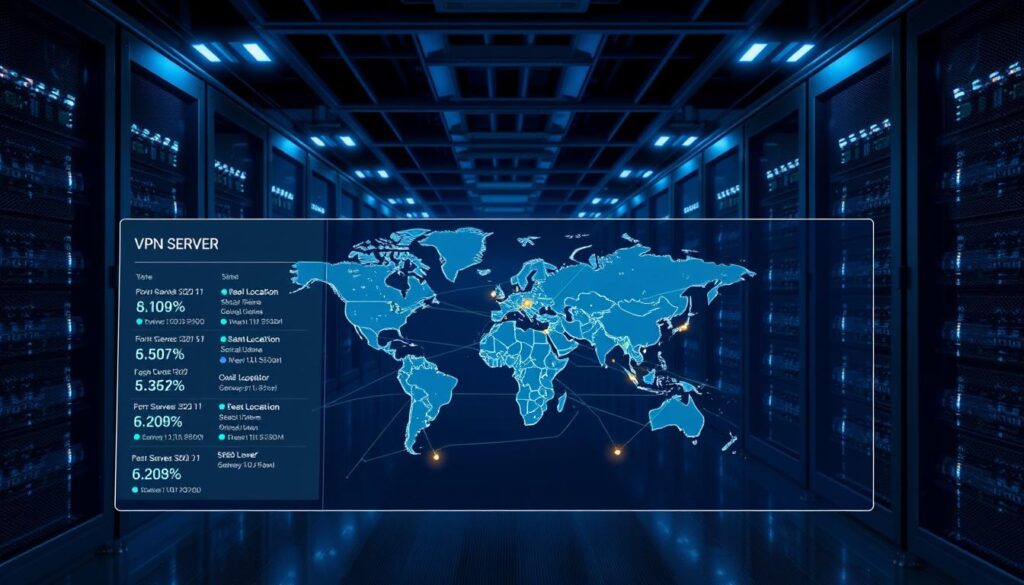
Most VPN clients display server load indicators, helping you choose less crowded options. For example:
- Green: Low load, optimal performance
- Yellow: Moderate load, slight slowdown
- Red: High load, significant delays
By selecting servers with lower loads, you can maintain better vpn speeds.
To troubleshoot location-based issues, follow these steps:
- Test your baseline speed without a VPN.
- Compare performance across different server locations.
- Switch to less crowded servers during peak hours.
Understanding these factors helps you make smarter choices for a smoother online experience.
Choosing the Right VPN Server for Optimal Speed
Selecting the right server can make a noticeable difference in your online experience. Whether you’re streaming, gaming, or browsing, the server you connect to directly impacts performance. Let’s explore how to choose the best option for your needs.
Closer Servers for Faster Speeds
Physical distance between your device and the server is a key factor. The closer the server, the lower the latency. For example, connecting to a server in New York from Boston will be faster than one in Sydney.
Providers like NordVPN offer a vast network of servers across 111 countries. This allows users to connect to the fastest vpn options available in their region. Here’s how to optimize:
- Map server proximity for major regions.
- Use ping testing tools to identify low-latency servers.
- Experiment with MultiHop for better routing.
Checking Server Load
Server congestion can slow down your connection. Premium providers like Surfshark and NordVPN display server load indicators, helping you choose less crowded options. Here’s what to look for:
- Green: Low load, optimal performance.
- Yellow: Moderate load, slight slowdown.
- Red: High load, significant delays.
By selecting servers with lower loads, you can maintain a smoother experience. This is especially useful during peak hours when traffic is high.
Understanding these factors ensures you make informed decisions. Whether you’re looking to connect vpn server for streaming or general browsing, these tips will help you achieve the fastest vpn performance possible.
Optimizing VPN Protocols for Speed
Choosing the right protocol can significantly enhance your online experience. Different protocols offer varying levels of security and performance, making it essential to understand their strengths and weaknesses.
Comparing OpenVPN, WireGuard, and Others
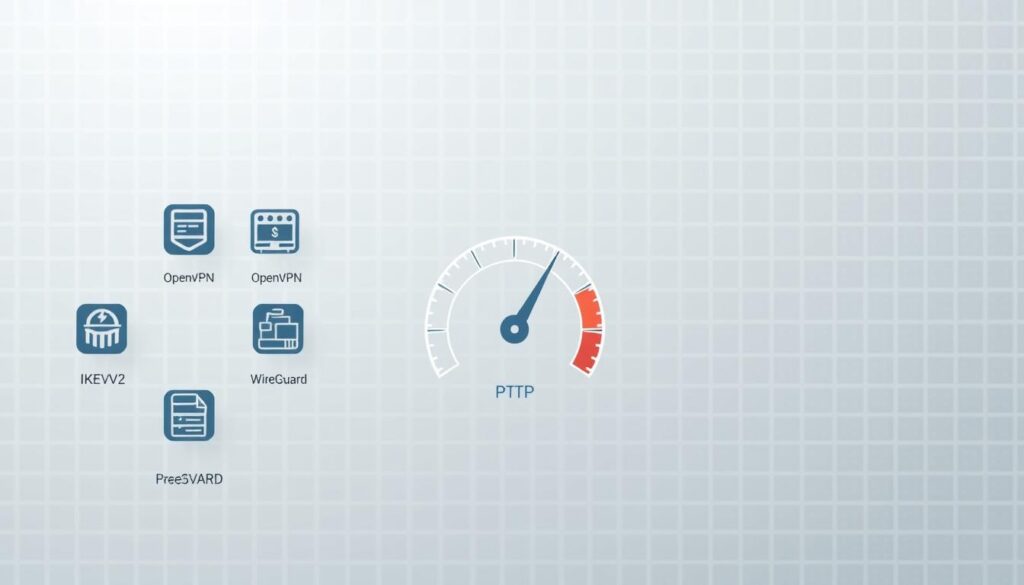
Not all protocols are created equal. Here’s a quick breakdown of the most popular options:
- WireGuard: Known for its simplicity and speed, it’s up to 3x faster than OpenVPN. Ideal for streaming and gaming.
- IKEv2: Balances speed and security, making it a reliable choice for mobile devices.
- OpenVPN: Offers robust security with a proven track record, though it’s slower compared to newer protocols.
Each protocol has its tradeoffs. WireGuard excels in speed vpn performance, while OpenVPN is praised for its audit history and reliability.
Switching Between TCP and UDP
Understanding the difference between TCP and UDP is crucial for optimizing your vpn connection. Here’s what you need to know:
- TCP: Ensures data integrity but is slower. Best for file transfers and browsing.
- UDP: Faster but less reliable. Ideal for real-time applications like streaming and gaming.
Most providers allow you to switch between these modes. For example, OpenVPN supports both, while WireGuard primarily uses UDP for maximum internet speed.
To switch protocols, follow these steps:
- Open your VPN app settings.
- Navigate to the protocol selection menu.
- Choose the option that best suits your needs.
By selecting the right protocol and mode, you can achieve the perfect balance between security and performance.
Advanced Tips to Boost VPN Speed
Maximizing your VPN’s performance requires more than just selecting the right server. Advanced techniques can significantly enhance your experience, especially for tasks like streaming, gaming, or handling sensitive data. Let’s explore some proven strategies to optimize your connection.

Enabling Split Tunneling
Split tunneling is a powerful feature that reduces bandwidth use by 40-60%. It allows you to route only specific apps or traffic through the VPN while letting the rest access the internet directly. This is particularly useful for streaming or work-related applications.
Here’s how to configure it:
- Open your VPN app settings and locate the split tunneling option.
- Select the apps or services you want to route through the VPN.
- Save the settings and test your connection for improved performance.
Using a Wired Connection
Switching from WiFi to a wired connection can boost your internet speed by 15-25%. Ethernet provides a more stable and faster connection, reducing latency and packet loss. This is especially beneficial for power users or those in areas with weak WiFi signals.
Consider these steps:
- Compare WiFi and Ethernet speed tests to see the difference.
- Invest in high-quality Ethernet cables for optimal performance.
- Optimize your router settings to prioritize VPN traffic.
For enterprise-grade solutions, advanced hardware and team deployment strategies can further enhance performance. By implementing these tips, you can unlock your VPN’s full potential and enjoy a smoother online experience.
Common Mistakes That Slow Down Your VPN
Many users unknowingly hinder their VPN performance by overlooking simple yet critical factors. These mistakes can significantly impact your internet connection, reducing speed and efficiency. Let’s explore two common errors and how to fix them.
Running Unnecessary Background Apps
Background apps can consume over 30% of your bandwidth, slowing down your connection. Processes like cloud syncing, automatic updates, and streaming services often run unnoticed, draining resources. Identifying and managing these apps can dramatically improve performance.
Here’s how to clean up your system:
- Use Task Manager (Windows) or Activity Monitor (macOS) to identify top bandwidth-hungry processes.
- Disable unnecessary startup programs to free up resources.
- Schedule updates during off-peak hours to minimize disruptions.
Ignoring Router and Device Restarts
Over time, your devices and router accumulate temporary files and cache, which can degrade performance. Rebooting your router and devices can improve speeds by 10-15% on average. This simple step clears memory and resets your internet connection.
Consider these maintenance tips:
- Reboot your router and devices at least once a week.
- Analyze cumulative speed degradation over uptime to identify patterns.
- Case studies show significant performance recovery post-reboot, especially during peak usage times.
By addressing these common mistakes, you can optimize your VPN experience and enjoy faster, more reliable connectivity.
Conclusion
Balancing privacy and performance is essential for a seamless online experience. By focusing on key factors like server location, protocol selection, and configuration, you can optimize your VPN for better results. Providers like Surfshark and NordVPN maintain less than 20% speed loss, making them reliable choices for speed-focused users.
Here’s a quick checklist to enhance your connection:
- Choose servers closer to your physical location.
- Opt for modern protocols like WireGuard for faster speeds.
- Monitor server load indicators to avoid congestion.
Emerging technologies, such as 20Gbps servers, are pushing the boundaries of what’s possible. These advancements ensure a smootherinternetexperience without compromisingsecurity.
Ultimately, the right balance depends on your needs. Whether you prioritize streaming, gaming, or secure browsing, these tips will help you achieve optimal performance while maintaining robust privacy.